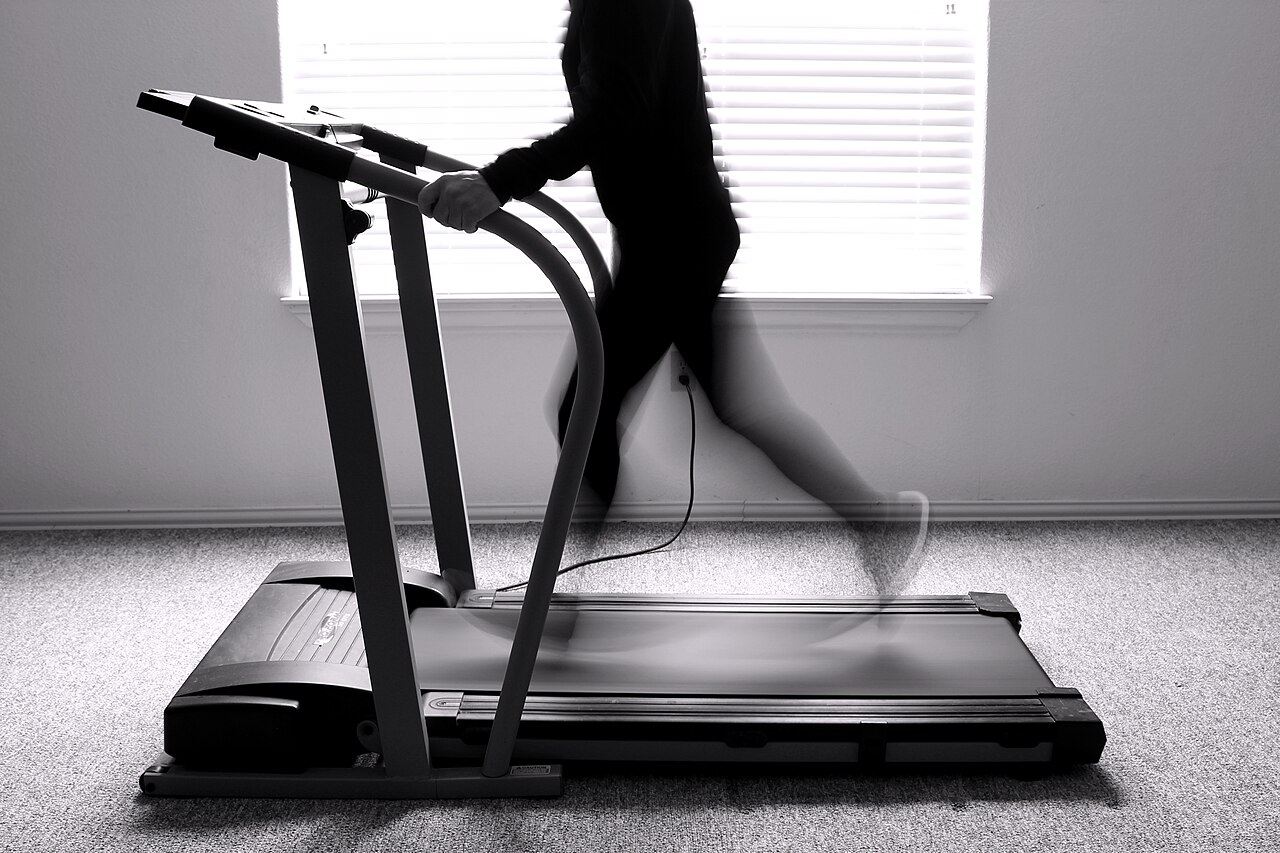
The ProForm 2000 is one of the treadmill profiles already represented in QZ. That gives owners a defined starting point for connecting the machine to a modern multi-app workout setup.


Table of Contents
Why the QZ profile matters
The QZ profile key(s) covered by this article: <code>proform_2000_treadmill</code>. The QZ profile label is “ProForm 2000 (not pro)”.
QZ is the bridge between the physical machine and compatible training software. It keeps the equipment connection in QZ, then exposes live data or a virtual device to the application selected by the rider.
The ProForm treadmill connection
| Area | What the QZ workflow provides |
|---|---|
| Physical connection | The exact QZ ProForm treadmill profile is selected for the model; the communication path may vary by console generation. |
| Live workout data | Speed, incline, distance, calories and other available treadmill metrics can be shown in QZ according to the profile and console data. |
| Incline workflow | The ProForm treadmill driver contains an incline command path, enabling incline-aware workflows and Zwift auto-inclination when the selected setup provides the required data and control path. |
| Virtual output | QZ can expose a virtual treadmill through FTMS for a compatible application running on the same or a second device. |
Zwift auto-inclination and virtual treadmill
Zwift can use QZ incline requests for auto-inclination when the compatible virtual-treadmill workflow is enabled. QZ maps the requested grade into the selected ProForm treadmill path rather than asking Zwift to connect directly to the physical console.
Open QZ treadmill settings, choose the exact model profile, connect the treadmill, and enable the virtual treadmill before opening the downstream app.
Apps that can use the QZ output
QZ documents application workflows for Zwift, BKOOL, Fulgaz, Kinomap and ROUVY. These services connect to the QZ virtual treadmill or compatible output; they should not be confused with native ProForm features.
QZ also supports health and workout-recording workflows around the device: Garmin Connect through FIT activity upload or, on compatible Android setups, ANT+ live broadcasting; Apple Health/HealthKit; Google Health Connect; and Strava workout upload. These are QZ integrations, not claims that the ProForm console natively implements each service.
More QZ tools around the workout
- Heart-rate sensors and Apple Watch data where configured.
- Workout recording, FIT exports, GPX/XML/ZWO and structured workout workflows where applicable.
- Profiles, configurable tiles, dashboard customization and text-to-speech feedback.
- MQTT, Open Sound Control and email workout reports for automation and monitoring.
Subscription boundary
QZ is a separate bridge and recording layer. Manufacturer memberships such as iFIT, and paid plans or content offered by Zwift, ROUVY, Kinomap, Garmin, Strava or other services, remain governed by those providers.
Setup checklist
- Install a current QZ build.
- Select ProForm 2000 and verify that the matching profile is enabled.
- Connect the physical machine to QZ and confirm that the main workout tiles update.
- Enable the virtual output or required integration.
- Connect the training app or health service to QZ and test a short session.
The result is a more open treadmill workflow: QZ handles the machine connection, while compatible apps and health services receive the workout through the bridge.
If something does not work as expected, send an email to Roberto.viola83@gmail.com and Roberto will help you check the setup.