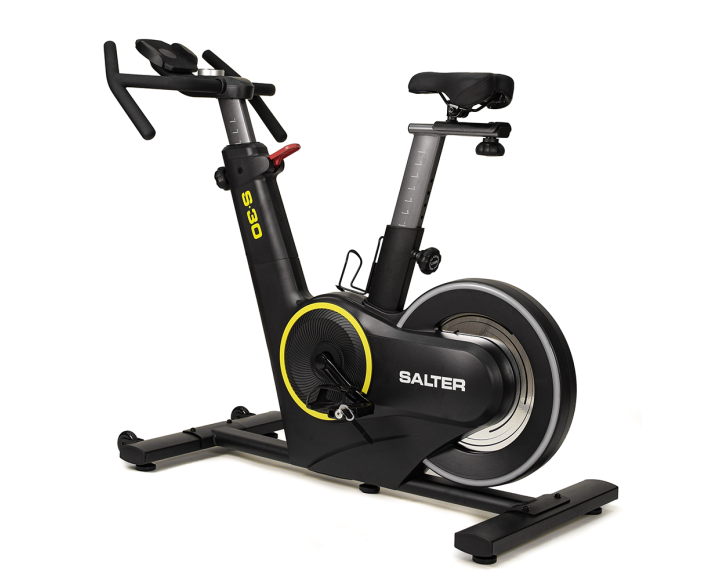
The Salter S-30 works with QZ Fitness through the FTMS Bike connection path. In the confirmed setup, QZ connected to the bike as S-30, the rider selected FTMS Bike, restarted QZ and saw the bike metrics in the app. QZ then adds a complete connected-training layer around the Salter hardware: virtual-bike bridging, training apps, Garmin, Apple Health, Google Health Connect, Strava and more.

Table of Contents
Salter S-30: the hardware
The S-30 is an indoor smart-training bike with a progressive magnetic resistance system offering 32 levels. Salter lists an 18 kg flywheel, adjustable saddle and handlebar positions, a phone holder, Bluetooth connectivity and a console showing time, speed, distance, calories, RPM, ODO and watts. The bike also supports optional wireless pulse measurement through a compatible belt.[1]
Confirmed QZ Fitness connection
The device-specific setup confirmed for this S-30 is:
- Open Bike Options in QZ Fitness.
- Select FTMS Bike.
- Press OK to save the selection.
- Restart QZ Fitness.
- Start Bluetooth discovery and select the device named S-30.
After the restart, the S-30 connected correctly and the live metrics were visible in QZ. This separates the device-specific result from the broader list of QZ integrations described below: the S-30 connection and metrics are the confirmed part of this report, while the other items are QZ bridge features available through the relevant virtual-bike or export workflow.
| Area | Salter S-30 + QZ result |
|---|---|
| Bluetooth name | S-30 |
| QZ connection path | FTMS Bike |
| Confirmed result | QZ connected and the rider saw the bike metrics. |
| Bike data | Speed, RPM/cadence, distance, calories, ODO, watts and time are the S-30 console metrics available to the QZ workflow. |
| Resistance | Magnetic resistance with 32 native levels according to Salter. QZ keeps the bike data available to compatible apps and can use the control features exposed by the selected FTMS/virtual-bike path. |
QZ as a virtual bike bridge
QZ can connect to the physical S-30 once, then advertise a virtual bike/trainer for another application. This avoids asking the physical bike to maintain several competing Bluetooth connections. The downstream app connects to QZ, while QZ remains connected to the S-30 and keeps the live data flowing.
QZ’s public documentation describes support for FTMS-compatible applications and virtual-bike workflows. The supported-application matrix includes cycling apps such as Zwift, BKOOL and Fulgaz, while the wider QZ feature list covers ROUVY, Wahoo RGT, VzFit, BitGym and other compatible application paths.[3] [2]
Zwift, MyWhoosh, ROUVY and other training apps
- Zwift: connect Zwift to the QZ virtual bike and use the S-30 metrics in the ride. QZ’s bike feature set includes Zwift compatibility and resistance workflows for compatible bike paths.[2] [3]
- MyWhoosh: use the QZ virtual bike/trainer workflow instead of pairing the physical S-30 directly to both applications. QZ documents virtual-bike connections to MyWhoosh and recommends confirming that the QZ metrics are updating before starting the downstream app.[5]
- ROUVY: QZ can provide a virtual trainer path and virtual gearing controls while ROUVY supplies the route experience. The exact resistance response depends on the application and the selected QZ bike path.[2] [4]
- Kinomap: let QZ connect to the physical S-30 and let Kinomap connect to the QZ virtual FTMS device. If Kinomap has saved an old direct connection, remove it and select the QZ virtual device through the FTMS equipment path.[4]
- BKOOL and Fulgaz: both appear in QZ’s supported FTMS application matrix for bike workflows.[3]
- Wahoo RGT, VzFit and BitGym: QZ lists these as compatible application paths for bikes, using the appropriate virtual device or protocol available to the app.[2]
Garmin Connect and live ANT+
QZ offers two Garmin workflows. It can record the completed ride and upload a generated FIT activity to Garmin Connect, or on compatible Android hardware it can broadcast live speed, distance, trainer or power data over ANT+ for a Garmin device to record. These are QZ integration features layered on top of the S-30 data; choose the FIT upload when the goal is a finished Garmin activity and ANT+ when the Garmin device must see live data during the ride.[4]
Apple Health, Google Health Connect and Strava
- Apple Health / HealthKit: QZ can save completed workouts to Apple Health after the required HealthKit permissions are granted.[2]
- Google Health Connect: on Android, QZ can write the completed workout after Health Connect is available and its write permissions are granted. The workout is saved when the QZ session is stopped and completed.[6]
- Strava: QZ supports recording and automatic upload workflows for completed bike workouts after the account is configured.[2]
Heart rate and workout data
QZ can combine the S-30 bike data with heart rate from Bluetooth sensors, ANT+ devices or Apple Watch workflows. Heart-rate zones can be customised, and heart rate can be used by QZ’s workout and training tools. The S-30’s own console also supports optional wireless pulse measurement according to Salter.[2] [1]
QZ can keep the workout data together in one session: speed, RPM/cadence, power, resistance where reported, distance, calories, elapsed time and heart rate. Tiles can be enabled, hidden and reordered so the rider can focus on the fields needed for a particular workout.
Workouts, routes and virtual gearing
- GPX routes: follow routes with 2D or 3D map views.
- ZWO and XML workouts: load structured workouts and intervals through QZ’s workout tools.
- Heart-rate workouts: use heart-rate targets and zones in supported training programs.
- Random workouts: generate a varied session without building every interval manually.
- Virtual gearing: QZ bike workflows can use supported controls such as Zwift Click, Zwift Play, Zwift Ride, CYCPLUS BC2 or a Bluetooth media remote for virtual Gear − / Gear +. This changes the virtual training relationship; it does not claim to replace the S-30’s native 32-level resistance scale.
- Power and resistance tiles: keep the native values visible in QZ while using the relevant converted or virtual value when an application requires it.
QZ’s bike documentation also includes custom resistance handling, Zwift resistance offset and gain settings, Peloton resistance conversion and virtual-bike device selection. These settings should be tuned to the rider’s equipment and app rather than copied as universal values.[5] [2]
Wi-Fi, Apple TV and automation
When Bluetooth connections are limited, QZ can expose a virtual trainer through the Wahoo DIRCON-compatible Wi-Fi path. This can be useful with Zwift on Apple TV: QZ keeps the physical S-30 connection while the Apple TV receives the virtual trainer over the local network, leaving Bluetooth available for a controller such as Zwift Click.[4] [2]
Beyond the training apps, QZ supports:
- Profiles: separate settings for different riders or fitness devices.
- Tile customisation: choose the order and visibility of the metrics.
- UI zoom: adjust the interface for the display being used.
- Email reports: receive a workout report when the session ends.
- MQTT: publish workout/device data to a home-automation or dashboard system.
- Open Sound Control: send live data to compatible creative, automation or visualisation tools.
- Text-to-speech: have QZ announce selected workout values.
Recommended S-30 workflow
- Close other fitness apps that may reconnect to the S-30.
- Open QZ and select FTMS Bike in Bike Options.
- Press OK, restart QZ and select S-30 during Bluetooth discovery.
- Confirm that RPM, speed, power and the other available metrics update in QZ.
- Connect the QZ virtual bike to Zwift, MyWhoosh, ROUVY, Kinomap or another compatible app.
- Configure Garmin, Apple Health, Health Connect or Strava if you want the workout exported.
- Stop the workout in QZ at the end so the completed activity can be saved and exported.
If an app keeps reconnecting directly to the physical bike, remove the old saved connection and pair it with the QZ virtual device instead. The physical S-30 should remain connected to QZ, not simultaneously managed by several applications.[4] [5]
The short version
Salter S-30 → Bluetooth FTMS Bike → QZ Fitness → virtual bike, Zwift, MyWhoosh, ROUVY, Kinomap, BKOOL, Fulgaz, Garmin, Apple Health, Google Health Connect, Strava and more. The reported S-30 setup already confirms the core QZ connection and visible metrics; the rest of the article shows how QZ can extend that connection into a much broader training and data workflow.
Sources
- Salter S-30 official product page — hardware specifications and Bluetooth/app information.
- QZ feature list — bike features, apps, workouts, exports and automation.
- QZ supported applications — FTMS application matrix.
- QZ integrations FAQ — Garmin, DIRCON, virtual-bike and Kinomap workflows.
- QZ bike troubleshooting FAQ — MyWhoosh, virtual bike and resistance workflow guidance.
- QZ Android FAQ — Google Health Connect export.
- QZ device compatibility FAQ — public device-to-QZ-to-app examples.
If something does not work as expected, send an email to Roberto.viola83@gmail.com and Roberto will help you check the setup.