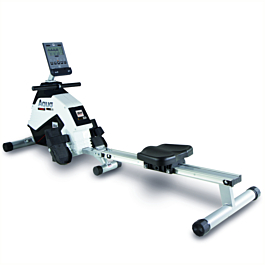
The BH Fitness AQUO Dual R309U works with QZ through the Pafers Rower path. In a confirmed support test, QZ connected to the rower identified as PAFERS_XxxxC, received live rowing data, and sent the workout through QZ’s Virtual Rower to MyWhoosh.

Table of Contents
What QZ receives from the AQUO Dual R309U
The BH Fitness AQUO Dual R309U is a compact magnetic rower with a Bluetooth-enabled console. BH Fitness documents rowing metrics such as time, watts, speed/RPM, calories and pulse on the product page. In the QZ test, the concrete Pafers rower path delivered live stroke rate, speed, distance and watts from the R309U into QZ.
Enable the correct QZ profile
Because the rower advertises itself as PAFERS_XxxxC, enable Pafers Rower in QZ’s Pafers Options. This is the setting that routes PAFERS devices to the Pafers rower handler; do not select the Pafers treadmill option for this machine. Restart QZ after changing the setting.
| QZ setting | Purpose |
|---|---|
| Pafers Rower | Routes the PAFERS_XxxxC device to QZ’s Pafers rower implementation. |
| Virtual Rower | Advertises the QZ rower profile to compatible third-party apps. |
| Virtual Rower as PM5 | Optional compatibility mode for apps that expect the Concept2 PM5 protocol. Enable it only when the target app needs PM5 emulation. |
MyWhoosh setup confirmed in the support test
- Enable Pafers Rower under QZ’s Pafers Options and restart QZ.
- Enable Virtual Rower in QZ’s experimental or virtual-device settings.
- Rename the phone running QZ to
ROW, using exactly three letters, then reboot the phone. This makes the QZ virtual rower easier for MyWhoosh to identify. - Start QZ and confirm that the AQUO Dual R309U is connected and live data is visible.
- On the second device running MyWhoosh, select the QZ virtual rower advertised with the
ROW-identity. - Start a Free Row session and confirm that the workout data travels from the AQUO Dual R309U to QZ and then to MyWhoosh.
What this setup gives you
With the Pafers Rower profile enabled, QZ handles the AQUO Dual R309U connection and exposes the rower’s live data. With Virtual Rower enabled, QZ provides a rower Bluetooth profile for compatible applications. The confirmed workflow is AQUO Dual R309U → QZ → Virtual Rower → MyWhoosh, with live rowing data available during the Free Row session.
What QZ adds beyond the device connection
QZ is more than a Bluetooth bridge. The exact controls and metrics depend on the equipment driver, operating system and target app, but the QZ platform can provide the following feature groups around a supported device:
| Area | QZ features |
|---|---|
| UI and profiles | Custom tile order and visibility, multiple user/device profiles, and UI zoom customization. |
| Training apps | FTMS and virtual-device bridging for Zwift, MyWhoosh, Rouvy, Kinomap-compatible workflows, Wahoo RGT, BKOOL, Fulgaz, VzFit, BitGym, iFIT, Echelon and other compatible FTMS applications. QZ can expose a virtual bike, trainer, treadmill, rower or heart-rate device when that profile is supported. |
| Live workout data | Speed, cadence/RPM, power, distance, calories, heart rate, resistance and other metrics reported or calculated by the connected equipment. QZ can use Apple Watch, ANT+ and Bluetooth heart-rate sources, customize heart-rate zones, and calculate estimated wattage from heart rate and cadence on compatible bikes without a power sensor. |
| Controls and ERG | Resistance, target power/ERG, virtual gears, treadmill speed/incline and other controls when the concrete device driver and target protocol support them. Zwift auto-resistance, Peloton power-zone/auto-resistance, Peloton real-time resistance conversion/auto-resistance, and Peloton auto speed/incline are available only for the relevant device profiles. A virtual control profile does not automatically mean the physical machine accepts every actuator. |
| Standalone QZ | QZ can run without Zwift or another training app, show live tiles and charts, record workouts, use target-watt control, follow heart-rate zones, run random or structured workouts, and follow GPX routes with 2D/3D maps. |
| Workout files and programs | Built-in local/cloud video workouts, GPX auto-following, ZWO Zwift workouts, XML workout files, heart-rate-following programs and random workouts are available where the selected device profile supports the required control. |
| Health, statistics and export | Email workout reports, Strava upload, Apple Health/HealthKit, Google Health Connect, Garmin Connect FIT upload and compatible activity exports. |
| Advanced integrations | MQTT, Open Sound Control, text-to-speech, ANT+ retransmission, Bluetooth resistance shifting with a remote, Zwift Play & Click, Wahoo DirCon, and compatibility profiles such as Wahoo KICKR, FTMS and PM5/virtual rower where relevant. Wahoo DirCon can let one physical device feed Zwift and Wahoo RGT through Wi-Fi when the required profile is supported. |
For this rower, the device-specific result remains the Pafers connection, live stroke rate, speed, distance and watts, and the Virtual Rower workflow. The other items in this overview are QZ bridge capabilities and depend on the selected virtual profile and target application.
Troubleshooting checklist
- Check that Pafers Rower, not Pafers Treadmill, is enabled.
- Restart QZ after changing the Pafers profile setting.
- Enable Virtual Rower before searching from MyWhoosh.
- Rename the QZ phone to
ROWand reboot it if MyWhoosh does not list the virtual rower. - Keep the AQUO Dual R309U connected to QZ and connect MyWhoosh to the QZ virtual rower.
- Use PM5 emulation only when the target app requires the PM5 protocol.
If something does not work as expected, send an email to Roberto.viola83@gmail.com and Roberto will help you check the setup.