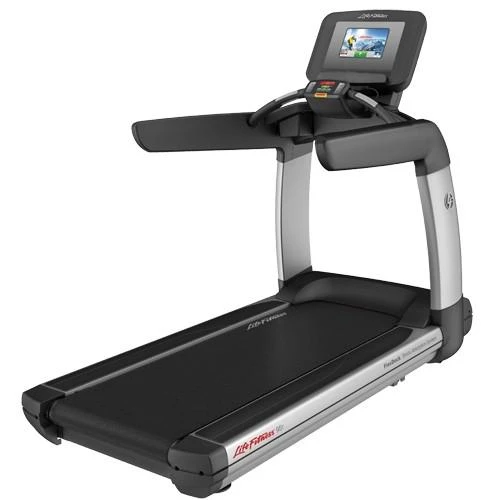
QZ now includes experimental support for Life Fitness 95T and 95Te treadmills. The dedicated profile connects QZ to the treadmill’s Bluetooth communication path, reads live workout data and adds a Life Fitness workout workflow to the QZ ecosystem.

Table of Contents
What the Life Fitness 95T/95Te support adds
The Life Fitness 95T and 95Te are commercial treadmills with an integrated console, speed and incline data, built-in workout programs and connected-training capabilities. QZ provides a bridge between the treadmill, the QZ workout interface and compatible training applications.
| Area | What QZ can provide |
|---|---|
| Bluetooth connection | Select the Life Fitness profile in QZ and connect to a compatible 95T/95Te treadmill. |
| Live treadmill data | Read treadmill telemetry such as speed and incline through the Life Fitness FTMS path. |
| QZ dashboard | Display available treadmill metrics in QZ alongside heart rate, workout targets, charts and session information. |
| Virtual treadmill output | Use QZ as the bridge to a compatible virtual-treadmill or FTMS application. |
| Account login | Use the Life Fitness account-based connection path when the required account configuration is available. |
| Guest login | An explicit experimental guest mode is available and disabled by default. |
| Custom workouts | Convert supported QZ workouts into the Life Fitness workout format and upload them to the treadmill’s custom workout library. |
| Console workout selection | After the upload, select and start the workout manually from the Life Fitness console. |
Life Fitness workouts through QZ
QZ can prepare a structured workout and transfer it to the Life Fitness treadmill’s custom workout area. The treadmill user can then review the workout on the console and start it manually.
The workflow supports structured interval workouts. QZ converts the workout into the Life Fitness format and transfers the workout data sequentially to the treadmill.
Live telemetry and compatible apps
Once connected, QZ can use the treadmill’s available telemetry for its normal workout and integration workflows. Depending on the selected platform and application, QZ can provide live speed and incline values, workout tiles and charts, heart-rate data from a compatible paired source, workout recording and history, virtual treadmill output, structured QZ workouts and available export and health-integration workflows.
The exact data and controls visible in another application depend on that application’s Bluetooth or FTMS support. QZ acts as the connection and translation layer between the treadmill and the selected training ecosystem.
Account and guest connection modes
The standard connection path uses the Life Fitness account workflow. QZ also includes an optional guest mode for compatible setups. Guest mode is disabled by default and can be enabled explicitly from the Life Fitness settings for experimental compatibility testing.
Setup checklist
- Install a current QZ build containing the Life Fitness 95T/95Te profile.
- Open Settings > Treadmill Options > Life Fitness Options.
- Select the appropriate Life Fitness connection settings.
- Configure the account-based path, or explicitly enable guest login for an experimental test.
- Restart QZ if requested after changing the Life Fitness settings.
- Connect the treadmill and confirm that speed and incline values update in the QZ dashboard.
- Test a short session before connecting a second training application.
- For custom workouts, upload the workout to the Life Fitness library and start it manually from the treadmill console.
The main QZ feature set
QZ adds a flexible bridge and workout layer around the equipment connection. These features are app-, platform- and driver-dependent; they are listed separately from the Life Fitness profile so the article distinguishes general QZ workflows from treadmill-specific capabilities.
| Area | What QZ can offer | Life Fitness 95T/95Te context |
|---|---|---|
| Live metrics and UI | Custom tiles, profiles, charts, live values and workout recording. | QZ can display the telemetry received through the Life Fitness profile. |
| Heart rate | Bluetooth, ANT+ and Apple Watch heart-rate sources, with configurable heart-rate zones and heart-rate tools. | Use the treadmill source or a separately paired QZ heart-rate source according to the selected connection path. |
| Virtual treadmill bridge | Virtual treadmill/FTMS output for Zwift, MyWhoosh, ROUVY, Wahoo RGT, Kinomap, BKOOL, Fulgaz, VzFit, BitGym and other compatible applications. | The Life Fitness profile supplies treadmill telemetry to the selected QZ output. |
| Workout formats | Video workouts, GPX routes, ZWO, XML, random workouts and heart-rate-following programs. | Structured QZ workouts can be converted for the Life Fitness custom-workout workflow. |
| Health and exports | Email reports, Strava, Apple Health/HealthKit, Google Health Connect and Garmin FIT activity workflows. | These integrations record or export the QZ session. |
| Advanced integrations | MQTT, OSC, text-to-speech, ANT+ retransmission, Bluetooth remote, Zwift Play & Click and Wahoo DirCon. | Enable the integrations that match the phone, computer, watch or home-automation setup. |
Zwift and other training apps
With QZ acting as the bridge, the Life Fitness session can be presented as a virtual treadmill to Zwift and other compatible applications. QZ’s documented app ecosystem includes Zwift, MyWhoosh, ROUVY, Wahoo RGT, Kinomap, BKOOL, Fulgaz, VzFit, BitGym and additional FTMS-compatible apps.
QZ can also run standalone: use its tiles and charts, start a workout, follow a video or GPX route, run ZWO/XML or random workouts, follow heart-rate targets, and save or export the resulting session through the available integrations.
Subscription boundary
QZ is a separate bridge and workout layer. Any Life Fitness, Zwift, ROUVY, Garmin, Strava or other third-party membership, paid class or premium-content requirement remains controlled by that provider; QZ does not remove another service’s billing requirements.
Getting started
Select the Life Fitness profile, confirm the live dashboard values, and then connect the QZ virtual treadmill to the training application of your choice. This lets the 95T/95Te remain the physical treadmill while QZ supplies the flexible data, workout and export layer around it.
If something does not work as expected, send an email to Roberto.viola83@gmail.com and Roberto will help you check the setup.
Sources
- 5273
- df10770eeef43a34ccb5c447ce2c9a89830904dc
- lifefitnesstreadmill.cpp
- lifefitnessworkout.cpp
- README.md
- 20_supported_devices_and_applications.md
- integrations.md
- WorkoutTracking.swift
- HealthConnectHelper.kt
- mqtt.cpp
- osc.cpp
- OM_TR_CN_95T-xxxxx-xx_15-Inch-Console_M051-00K70-A004_English.pdf
- life-fitness-discover-si-95t-elevation-treadmill