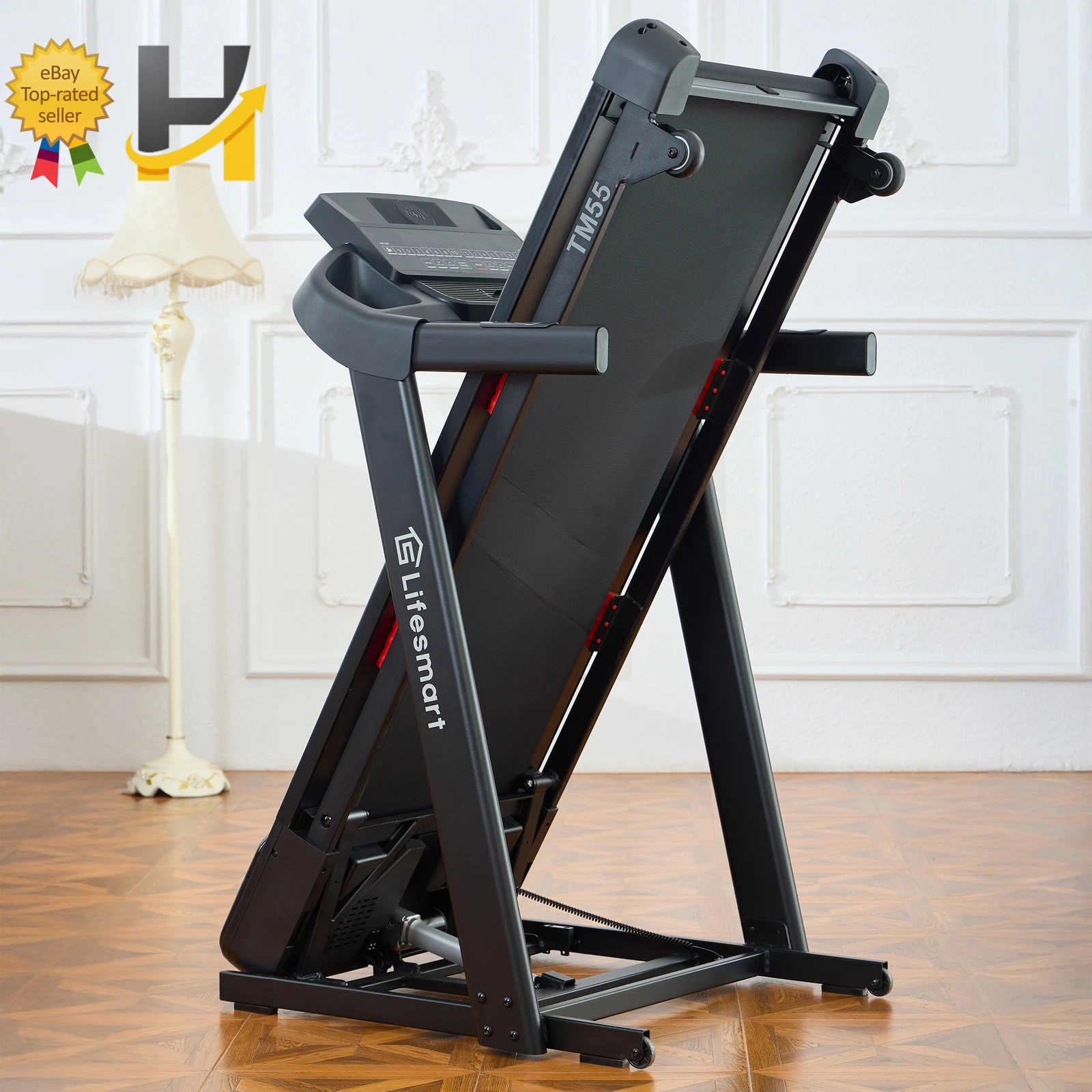
The LifeSmart TM55 PowerTouch is routed by QZ through its treadmill path when the treadmill advertises the supported TM55- Bluetooth name. This article describes the QZ setup path and the features available from the QZ bridge; it is a protocol/setup guide, not a claim of a private field test.

Table of Contents
What the LifeSmart TM55 provides
The TM55 PowerTouch is listed with a 20-by-55-inch belt, 0–10 mph speed, 10% incline, -3% decline, a 2.75 HP brushless motor and a four-window LED display. Costco also lists folding, a cooling fan, heart-rate monitoring, motorized operation, a shock-absorbing deck and 26 programs.
QZ treadmill connection
QZ’s Bluetooth discovery code includes the TM55- treadmill name pattern and routes it through the Horizon treadmill implementation. In that concrete path, QZ can receive the treadmill’s live workout metrics and expose them through a virtual treadmill profile for compatible apps.
| Capability | LifeSmart TM55 with QZ |
|---|---|
| Live metrics | Speed, pace, distance, calories, heart rate and incline information where the TM55 reports the value and the active QZ profile parses it. |
| Speed control | QZ’s treadmill control path can send speed requests to the supported treadmill profile when the device accepts the corresponding command. |
| Incline/decline control | QZ’s treadmill control path can send grade requests when supported by the connected TM55 firmware and the selected virtual-device workflow. |
| Zwift and FTMS apps | QZ can advertise a virtual treadmill/FTMS endpoint for Zwift, MyWhoosh, Rouvy, Wahoo RGT, Kinomap-compatible workflows and other apps that accept the relevant treadmill data and control fields. |
Setup path
- Turn on Bluetooth and the LifeSmart TM55.
- Open QZ and let it discover the treadmill. If the model is not found automatically, check that the device advertises the supported
TM55-name and select the treadmill profile appropriate to the installation. - Enable QZ’s virtual treadmill/FTMS output required by the target app.
- In Zwift or another compatible app, pair the QZ virtual treadmill for speed, heart rate and controllable treadmill data as offered by that app.
- Keep the TM55 connected to QZ; the training app should connect to QZ’s virtual device rather than competing for the physical treadmill connection.
What QZ adds beyond the TM55 connection
QZ is more than a Bluetooth bridge. The exact controls and metrics depend on the equipment driver, operating system and target app, but the QZ platform can provide these feature groups around a supported treadmill:
| Area | QZ features |
|---|---|
| UI and profiles | Custom tile order and visibility, multiple user/device profiles, and UI zoom customization. |
| Treadmill data | Live speed, pace, distance, calories, heart rate, incline and other values reported or calculated by the connected treadmill. QZ can also use Apple Watch, ANT+ and Bluetooth heart-rate sources and customize heart-rate zones. |
| Virtual training apps | Virtual treadmill and FTMS bridging for Zwift, MyWhoosh, Rouvy, Wahoo RGT, Kinomap-compatible workflows, BKOOL, Fulgaz, VzFit, BitGym and other compatible FTMS applications. |
| Controls | Speed and incline control when the concrete driver and target protocol support them, plus Zwift auto-incline/auto-speed workflows where supported. A virtual treadmill profile does not automatically mean every app can command every physical actuator. |
| Standalone QZ | Use QZ without another training app for live tiles and charts, workout recording, target speed/incline workouts, heart-rate-following programs, random or structured workouts, and GPX routes with maps. |
| Workout programs | Local/cloud video workouts, GPX auto-following, ZWO Zwift workouts, XML workout files, heart-rate-following programs and random workouts where the selected treadmill profile supports the required control. |
| Health and export | Email workout reports, Strava upload, Apple Health/HealthKit, Google Health Connect, Garmin Connect FIT upload and compatible activity exports. |
| Advanced integrations | MQTT, Open Sound Control, text-to-speech, ANT+ retransmission, Bluetooth remote control, Zwift Play & Click, Wahoo DirCon and other evidenced QZ integrations. Availability depends on platform, permissions and the selected virtual profile. |
Practical QZ workflows
With QZ standalone, the TM55 can be used for live monitoring, recording, structured workouts, target speed/incline sessions, heart-rate-guided training and GPX route following where the selected control path supports it. With a compatible external app, QZ can bridge the treadmill data and supported control commands without requiring the manufacturer’s app to be the only training interface. Any subscription or paid features of Zwift, MyWhoosh, Rouvy or another service remain governed by that service.
Troubleshooting
- Confirm the TM55 is advertising the expected
TM55-Bluetooth name. - Close other treadmill apps before connecting QZ.
- Pair the external app to QZ’s virtual treadmill, not directly to the physical treadmill when QZ is acting as the bridge.
- If a command is not applied, verify that the selected QZ profile and target app expose the relevant speed or incline control.
- Restart Bluetooth and QZ after changing the virtual-device settings.
If something does not work as expected, send an email to Roberto.viola83@gmail.com and Roberto will help you check the setup.
