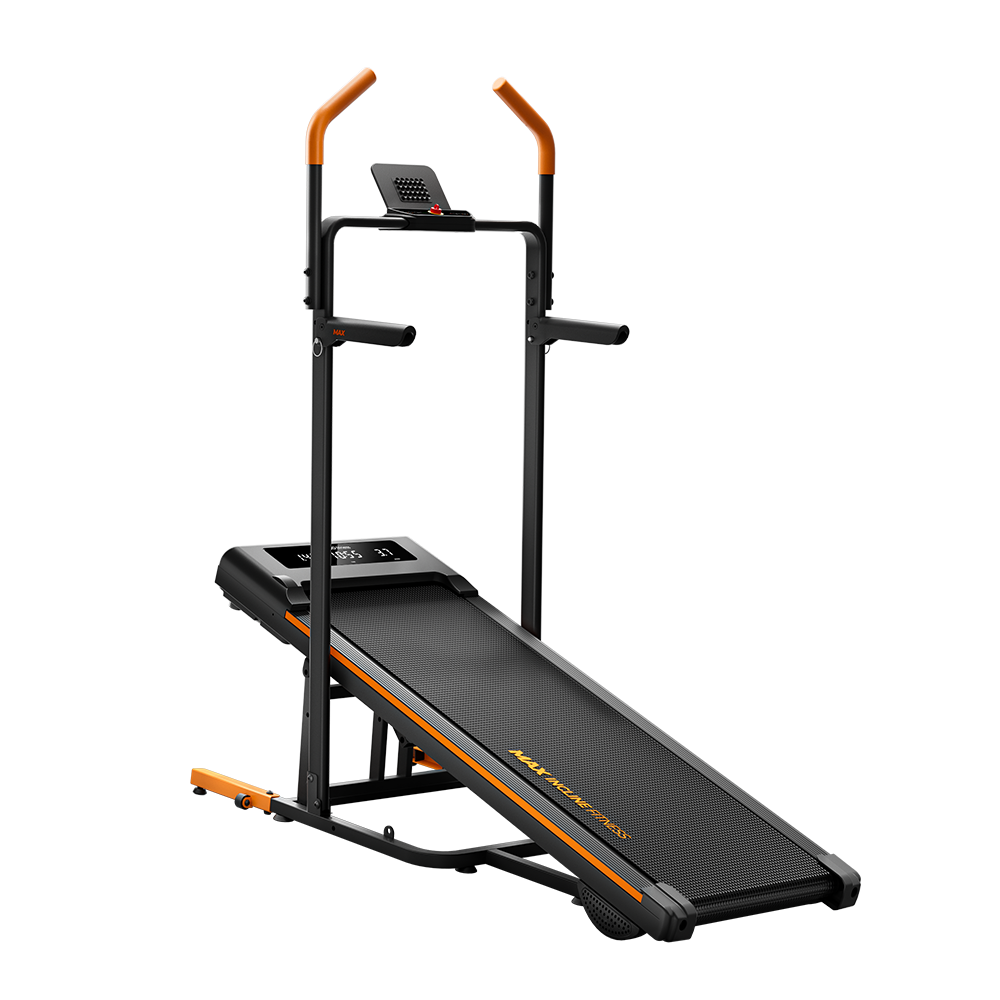
The YPOO YP-M1552, identified in QZ as the YPOO M5 treadmill, is now supported by QZ with live treadmill data and two-way speed and incline control.

Table of Contents
YPOO YP-M1552 and QZ
QZ support for this treadmill uses its existing Horizon/FTMS treadmill path plus the model-specific handshake required by the YPOO firmware. The treadmill can expose FTMS telemetry, but it also requires an unlock and control-grant sequence before motor commands are accepted. QZ now handles that sequence, waits for fresh telemetry and keeps the control path active across normal reconnects.
The YP-M1552 is now a supported QZ treadmill workflow, with the connection, control sequence and live telemetry working together so you can use the machine as part of a modern connected-training setup.
What works
- Start and stop: QZ can start and stop the treadmill through the supported control path, with stop taking priority over queued motion requests.
- Speed: QZ can send speed targets and confirm the resulting movement from treadmill telemetry. The virtual treadmill advertises a 1–18.8 km/h range in the implementation.
- Incline and decline: QZ supports automatic incline/decline targets. The virtual output covers −6 to 15%, while the physical unit’s firmware may represent incline internally as console levels; QZ keeps its user-facing workout semantics in real percentage values.
- Live telemetry: Speed, incline, distance and the other FTMS treadmill metrics can be displayed in QZ and forwarded to compatible apps.
- Recording and distance: QZ resumes recording from fresh motion telemetry and maintains one monotonic, telemetry-driven distance path, avoiding gaps and double counting during pauses or reconnects.
- Reconnect handling: The initialization and control sequence is bounded and can be repeated after reconnect when needed.
Connected apps
With QZ acting as the bridge, the YP-M1552 can be used with compatible virtual-training applications. Zwift, MyWhoosh, Kinomap, Rouvy, Wahoo RGT, BKOOL, Fulgaz, VzFit and BitGym are examples of supported QZ workflows. The treadmill connects to QZ, while the training app connects to QZ’s virtual treadmill output.
When the app sends speed or incline commands, QZ translates them to the YPOO control path and checks the resulting device telemetry. This is what enables workflows such as automatic incline changes in route-based or structured training. The app still controls which targets are sent: QZ cannot make a third-party app automatically change speed or incline if that app does not request it.
Runna, Kinomap and native mobile workflows
The implementation includes the control queue needed for rapid native iOS requests and prioritizes stop commands. Hardware testing also covered Kinomap incline/decline workflows and Runna speed/incline control. Native iOS support, macOS Bluetooth support and the virtual FTMS treadmill path are part of the same QZ integration, subject to the build and platform version being used.
Using QZ by itself
QZ can also be used without Zwift or another external platform. It can show live tiles and charts, record the workout, run structured intervals, follow GPX routes or video workouts, load ZWO/XML workouts and use heart-rate targets. The session can then be exported through the available health and training integrations.
The wider QZ ecosystem
Once the treadmill is connected to QZ, the YP-M1552 is not limited to a single app. The exact availability depends on the operating system, the selected virtual profile and the target application, but QZ can provide the following ecosystem around a supported treadmill:
| Area | QZ capabilities |
|---|---|
| Virtual training | Virtual treadmill output for Zwift, MyWhoosh, Kinomap, Rouvy, Wahoo RGT, BKOOL, Fulgaz, VzFit, BitGym and other compatible workflows. |
| Automatic control | Speed and incline targets from compatible apps, including automatic incline workflows. The target app must send the relevant control; QZ cannot add a control command that the app does not request. |
| QZ standalone | Live metrics, charts, recording, structured workouts, random workouts, heart-rate-guided sessions and session history without another training platform. |
| Workout formats | GPX routes with maps, video workouts, ZWO Zwift workouts, XML intervals and other structured training paths where the selected platform supports them. |
| Health and training exports | Apple Health/HealthKit, Google Health Connect, Garmin FIT and ANT+ workflows, Strava uploads, email reports and compatible activity exports. |
| Heart rate | Bluetooth heart-rate monitors, ANT+ heart rate and Apple Watch sources, with zones and heart-rate-driven workout features. |
| Advanced integrations | MQTT, OSC, text-to-speech, Wahoo DirCon, ANT+ retransmission, Bluetooth remote control and Zwift Play & Click integrations when supported by the platform and setup. |
How to connect the YP-M1552
- Install a QZ build containing the YPOO M5 support, or a later nightly/release that includes it.
- Close Kinomap, Runna or any other app that may already own the treadmill Bluetooth connection.
- Start QZ and allow it to discover the treadmill under its YPOO/FTMS advertising name.
- Wait for QZ to complete the unlock and control-grant sequence before sending speed or incline.
- Confirm live telemetry in QZ first, then connect the desired training app to QZ’s virtual treadmill.
- Test a small speed and incline change before starting a long workout.
Getting started
Install the latest QZ version available for your platform, connect the YP-M1552 to QZ and let QZ complete the connection sequence. Once the live metrics are visible, pair your preferred training app with QZ’s virtual treadmill and start your workout.
A note about the image and model identity
The image above is a representative YPOO treadmill image from the manufacturer’s treadmill catalogue; it is not presented as a photograph of the specific YP-M1552 test unit. The model identity and QZ compatibility are based on the Bluetooth/model evidence and the public QZ implementation.